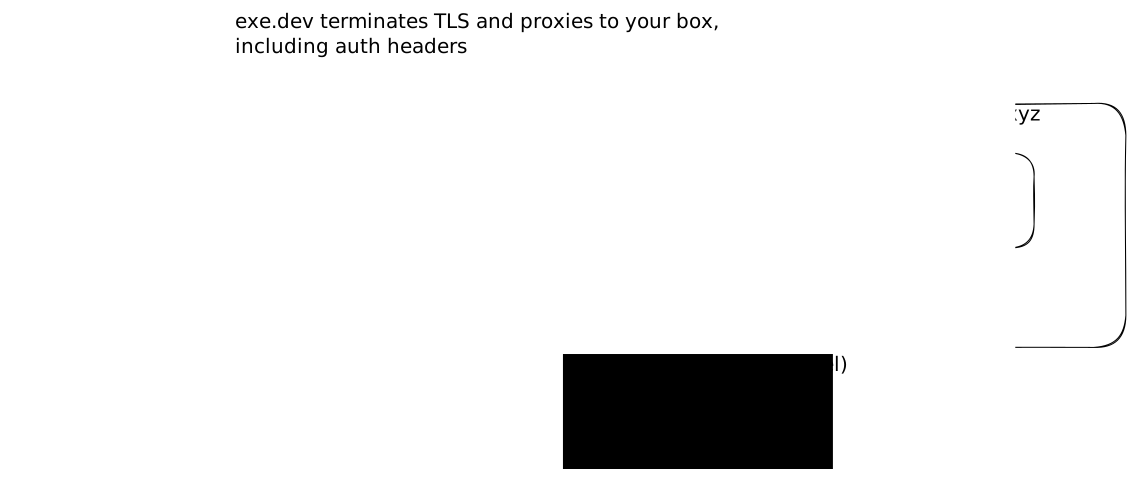
 `exe.dev` proxies traffic to https://vmname.exe.xyz/ to your VM seamlessly, handling
certificates, TLS termination, and optionally offering basic authentication.
## Configuring which port to proxy
By default, `exe.dev` attempts to automatically pick a good port.
It works from the set of ports exposed by the `EXPOSE` directive in a `Dockerfile`,
preferring port 80 and falling back to the smallest exposed TCP port >= 1024.
You can change the port chosen with `ssh exe.dev share port `.
This updates the proxy target while keeping the current visibility setting
(private by default).
## Private vs Public Proxies
By default, only users with access to the VM can access the HTTP proxy. Users
accessing https://vmname.exe.xyz/ for the first time will be redirected to log
into `exe.dev`.
To share your site publicly, run `ssh exe.dev share set-public `.
Return it to private access with `ssh exe.dev share set-private `.
To use exe.dev authentication in your application, see [Login with exe.dev](./login-with-exe).
## Reverse proxy headers
Requests proxied by exe.dev include standard `X-Forwarded-*` headers so your
application can reconstruct the original public request information:
- `X-Forwarded-Proto`: `https` when the client connected over TLS, otherwise `http`
- `X-Forwarded-Host`: The full host header (including port) that the client requested
- `X-Forwarded-For`: A comma-separated list containing any prior `X-Forwarded-For` value plus the client's IP as seen by exe.dev
## Additional Ports
The proxy transparently forwards ports between 3000 and 9999.
For example, if you are serving on port 3456 on your VM,
you can access that at https://vmname.exe.xyz:3456/.
You may only mark a single port public (with the `share set-public` and `share
port` commands); these alternate ports can only be accessed by users with access
to the VM.
`exe.dev` proxies traffic to https://vmname.exe.xyz/ to your VM seamlessly, handling
certificates, TLS termination, and optionally offering basic authentication.
## Configuring which port to proxy
By default, `exe.dev` attempts to automatically pick a good port.
It works from the set of ports exposed by the `EXPOSE` directive in a `Dockerfile`,
preferring port 80 and falling back to the smallest exposed TCP port >= 1024.
You can change the port chosen with `ssh exe.dev share port `.
This updates the proxy target while keeping the current visibility setting
(private by default).
## Private vs Public Proxies
By default, only users with access to the VM can access the HTTP proxy. Users
accessing https://vmname.exe.xyz/ for the first time will be redirected to log
into `exe.dev`.
To share your site publicly, run `ssh exe.dev share set-public `.
Return it to private access with `ssh exe.dev share set-private `.
To use exe.dev authentication in your application, see [Login with exe.dev](./login-with-exe).
## Reverse proxy headers
Requests proxied by exe.dev include standard `X-Forwarded-*` headers so your
application can reconstruct the original public request information:
- `X-Forwarded-Proto`: `https` when the client connected over TLS, otherwise `http`
- `X-Forwarded-Host`: The full host header (including port) that the client requested
- `X-Forwarded-For`: A comma-separated list containing any prior `X-Forwarded-For` value plus the client's IP as seen by exe.dev
## Additional Ports
The proxy transparently forwards ports between 3000 and 9999.
For example, if you are serving on port 3456 on your VM,
you can access that at https://vmname.exe.xyz:3456/.
You may only mark a single port public (with the `share set-public` and `share
port` commands); these alternate ports can only be accessed by users with access
to the VM.